Alerts
Manage active and past alerts
Edit an alert, end it, or review previous alerts.
Last reviewed: 14 September 2026
Follow these steps
From the left menu, select Alerts.
Use Active alerts to see messages residents can currently see.
Select an alert row to edit its title or text.
Turn Active off when the message is no longer current.
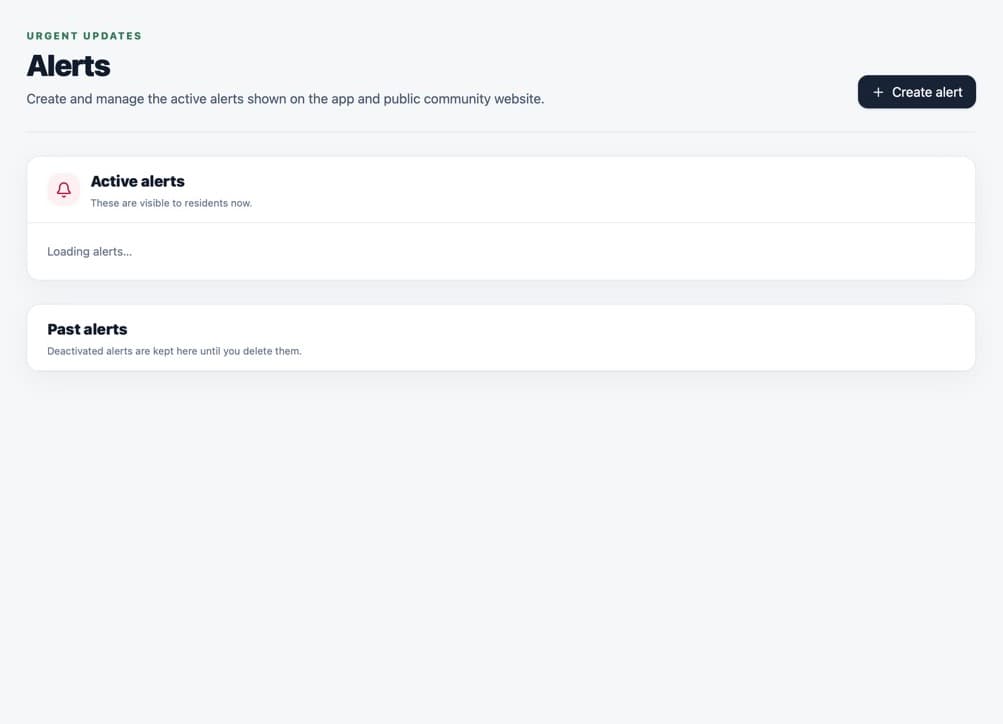
The Active switch controls whether residents can see the alert. Use Past alerts to review alerts that have ended.
Delete a past alert only when it is no longer needed. Deletion is permanent.
What happens next
An inactive alert moves to Past alerts and disappears from resident-facing areas. Turning it off does not withdraw a phone notification already delivered.
Was this helpful?