Getting Started
Understand the Admin Portal
Learn what each part of the Admin Portal is for before you make a change.
Last reviewed: 14 September 2026
Follow these steps
Use the left menu to move between Alerts, community pages and settings, including help-form delivery.
Look at the heading at the top of the page to confirm which area you have opened.
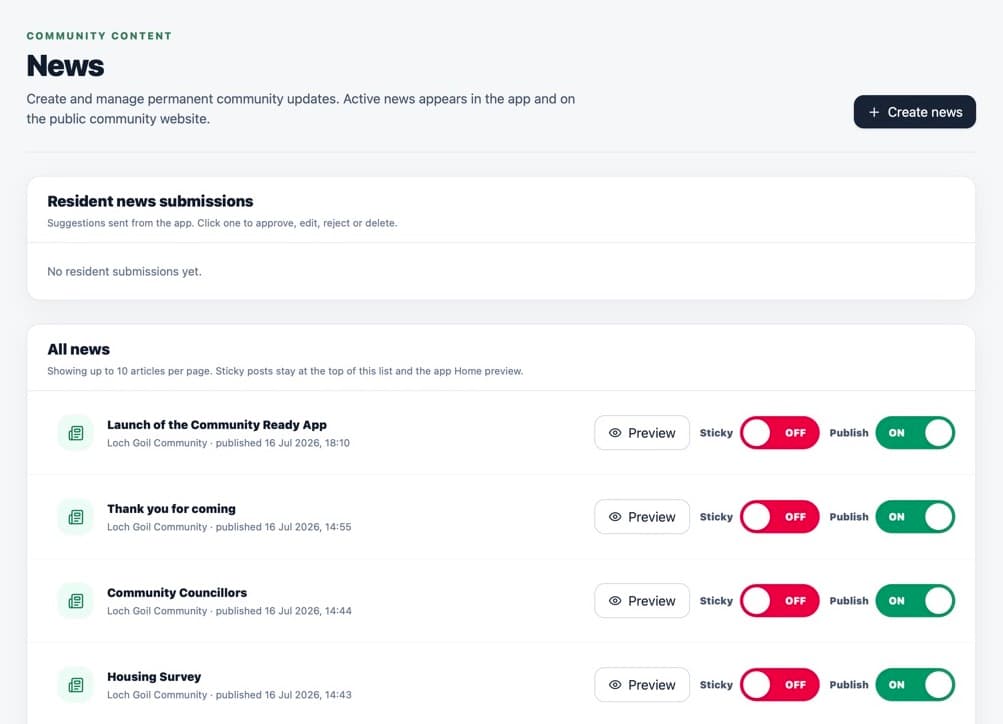
A typical portal page has navigation, a page title, a create button and a list of existing items. Use the main list to open an existing item or the button at the top-right to create a new item.
Check switches such as Published, Pinned or Active before leaving the page.
On a small screen, select the menu button in the top-left to open the navigation.
What happens next
Changes are saved to the community managed by the portal. Published information may also appear in the resident app and public community website.
Was this helpful?